Setting up Fortnite for your child
Find your child’s Fortnite account, choose the games and conversations you’re comfortable with, and check purchases and time limits before they play.
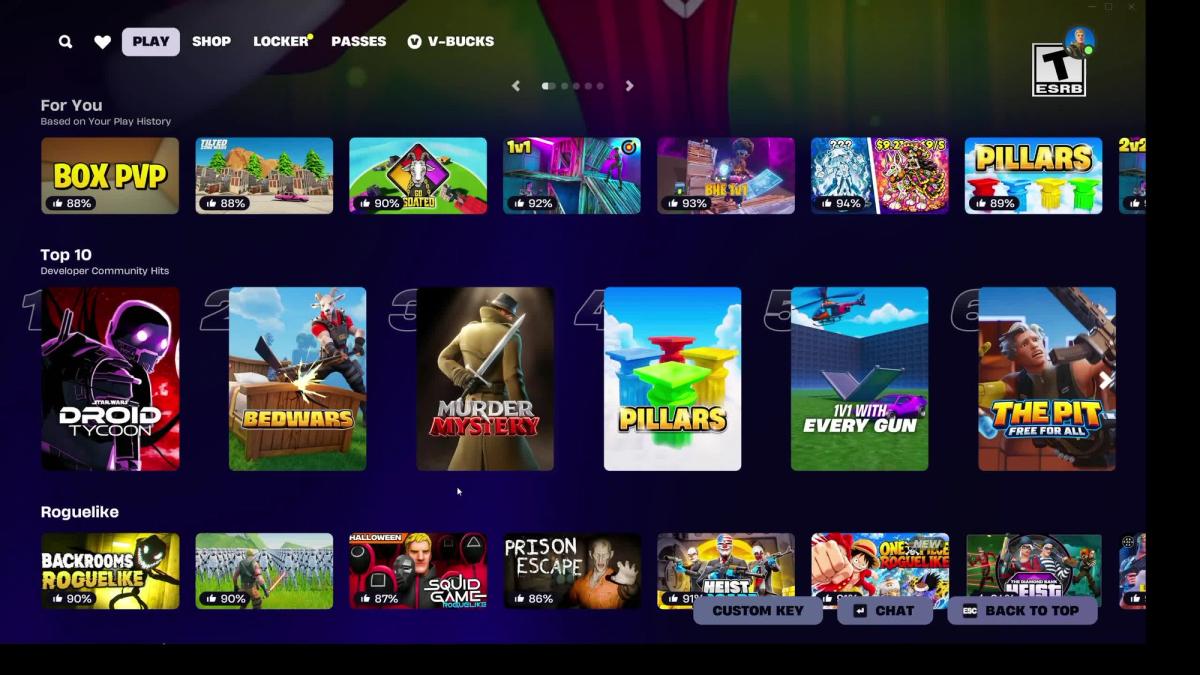
Find the right account, then choose game access, voice and text chat, friends, purchases and time. Making a parental PIN protects those choices; it doesn’t make them for you.
- What to do now
- Match the Epic account ID on the website to the one in your child’s game before changing settings.
- Settings that matter
- Game ratings; voice and text chat separately; friend requests; Epic and console payments; playtimes.
On this page
- Find the account before changing anything
- Check the child’s age and consent state
- Open parental controls and set the PIN
- Choose which games can open
- Choose voice and typed chat separately
- Review friends and invitations
- Check where purchases could happen
- Set time, then explain the stopping plan
- If something does not match
- Questions
Start with the account your child already uses. Once you’ve found it, you can choose which games they can open, who they can talk to, what they can spend and when they can play. The parental PIN, a code you keep to yourself, protects those choices. Making one doesn’t set them for you.
I recorded an adult Windows PC setup and two solo Battle Royale matches on 25 October 2026. The child-account and console steps below still follow Epic’s help pages, checked on 26 October; I haven’t tested those controls on a child’s account. If your screen looks different, use the linked official instructions for that step.
Find the account before changing anything
Fortnite uses an Epic Games account, the account held with the company behind Fortnite. On a PlayStation, Xbox or Nintendo console, it’s linked to a separate account for that console. They may use different email addresses. If that already sounds confusing, finding the right account is the part to take slowly.
If your child already plays, try the relevant console sign-in button on Epic’s website using the account they play on. Making a new account or unlinking the old one can leave you changing settings on an account without their progress. If Epic asks you to finish an account that has no email attached, its console-created account instructions explain what to do.
Here’s a useful check before you go further: compare the Epic account ID on the website with the one in the game. This is the account’s unique identifier, unlike a display name, which can change. On the website, look under Account Information. In Fortnite, open Settings, then Account and Privacy. Epic shows both locations.
If your child borrows an adult’s account, they may also be using its permissions and purchases. Their own child-account settings won’t automatically follow them there.
Check the child’s age and consent state
Enter your child’s real age. If they’re under 13, or under the local age of digital consent where that is higher, their account may be Cabined while it waits for parental consent. That’s Epic’s term for an account with features such as voice and freely typed chat restricted. Giving consent is one step; choosing which permissions to allow is the next. Epic’s parental-consent FAQ explains both.
If the consent email hasn’t arrived, check the parent email address entered, then use Request Parental Permission in the account portal to send it again. The Cabined Account guide shows the route. Use an inbox you can keep accessing, because you may need it to manage permissions later.
Open parental controls and set the PIN
On a phone or computer, open Epic’s parental controls while signed into the child’s account. Create or enter the six-digit parental PIN.
You can also begin inside Fortnite: select the player picture, then the menu icon with three horizontal lines, then Parental Controls. Epic asks you to confirm a parent-controlled email and choose the PIN. The in-game setup instructions are here.
Choose a PIN your child doesn’t already use to unlock a device. After changing a setting, reopen that section to check it saved. It’s an easy way to catch a missed confirmation before handing over the controller.
Choose which games can open
Find Fortnite’s content-rating restriction and choose the level you’re comfortable allowing after reading the game’s content description. Opening a game above that level requires permission through the PIN system. If your child also gets games from the Epic Games Store, check that store’s separate rating controls. Epic’s individual island-rating guide explains the Fortnite side. An island is Fortnite’s name for an individual game or experience.
If you’re considering LEGO Fortnite Odyssey, start with its Everyone 10+ rating and Fantasy Violence description from ESRB, the North American game-rating body. An eight-year-old being able to open it doesn’t make it rated for eight-year-olds. Battle Royale is a separate decision: its Teen rating means content generally suitable for ages 13 and up. You don’t need to unlock that rating just to get the account working.
Reopen the restriction to check your choice, then look at the intended game’s details with your child. If something is blocked later, you can check what it is before entering the PIN.
You may also see a permission for Fortnite Creative and Unreal Editor for Fortnite, tools people use to make games. Turning those tools off stops access to creating; it doesn’t block every game somebody else has made.
Choose voice and typed chat separately
During my adult PC setup, a voice-reporting notice offered separate buttons to turn voice chat on or off. That was one setup screen, not a check of a child’s permissions. Voice, typed chat and who can join need their own review; don’t use the appearance of that prompt as proof that the account is ready.
While you’re still checking the friend lists, you can set both chat permissions to Nobody. This turns off Epic voice and freely typed conversation. In the game’s communication menu, the off choice may be called Off. Standard preset phrases can still be available in games that support them.
If the plan is to speak with people the family knows, Friends Only is a narrower choice than allowing everyone assigned to a team. It includes both Epic and platform friends, so review the console friend list as well. Friends, Team Members, and Connections can include unfamiliar teammates and people linked through friends. It is not “only the friends we invited.” Epic’s current communication settings guide explains the labels.
For children under ten, Friends Only is the broadest communication choice allowed. At ten to twelve, broader options can appear, depending on the parental controls. You can keep your existing choice when those options appear. Check voice and text separately, then reopen both to confirm they saved. Epic’s parental-control reference explains the age limits.
You can check this with another adult you know, using their account. Does the intended conversation work, or stay off, as you chose? Make sure the sound isn’t coming through a separate console voice service or phone call while you’re checking Fortnite.
Review friends and invitations
If you want to approve new Epic friends, turn on the parental PIN requirement for friend requests. Check the console’s friend controls too. Then look through existing contacts with your child: “Who is this, and how do you know them?” The setting can’t answer that part for you.
Set the party, the group gathering to play together, to Invite Only. This controls entry to the party, not who your group can meet as opponents in a Battle Royale match. Other members can invite their friends, and another party’s settings apply when your child joins it. Agree that an unexpected arrival means stopping to check who has joined. Epic’s party guide explains those limits.
Check where purchases could happen
Turn on the PIN requirement for Epic payments, then inspect purchase approval on the console or other store taking payment. Epic’s PIN does not cover another platform’s checkout or spending V-Bucks already held in the account. V-Bucks are Fortnite’s virtual currency, which can be bought with real money.
Check existing balances and subscriptions together. A gift card may leave spending value available even without a stored bank card. Paid random items are purchases where you pay before knowing which reward you will get. If you see a permission for these, leaving it off addresses that category, not every possible purchase. The parental-control reference explains payment coverage, while the Epic account balance FAQ explains gift-card funds.
You can check that the controls saved without buying anything. Then explain the spending agreement to your child too, including whether they can use currency already in the account.
Set time, then explain the stopping plan
Review Time Limits and Reports. Choose the permitted play window and time allowance that fit the family’s plan, and decide whether requests for extra time are allowed. Reports can show use on the account; they cannot tell you whether a session was enjoyable or upsetting. Read how reports work and how extra time is granted.
Tell your child the finish time before they start, and when it will be too late to begin another match. Reopen the saved schedule and check the timezone shown. If the console has its own limit, see whether that will end play sooner.
You can leave optional features off until you’ve had a chance to discuss them. That includes talking with AI characters, which are computer-generated characters rather than people. Epic has a separate AI communication control; allowing human friends to chat doesn’t make this choice for you.
If something does not match
If a chat option is missing, check the age and consent restrictions first. Changing the birth date isn’t the fix. If you’ve forgotten the PIN, choose Forgot your PIN? on the parental-controls page. For a minor’s account, the reset email goes to the associated parent or guardian email. Epic’s reset instructions also link to parent support if you get stuck.
Before handing over the controller, run through the account, chosen game, both chat settings, contacts, purchases and end time once more. Then sit with your child for the first session. You’ll be able to see where the plan works and where either of you needs a little more help.
Questions parents ask
Does an Epic payment PIN stop V-Bucks spending?
No. It covers payments through Epic, but not another store’s checkout or V-Bucks already in the account. Check the store your child uses and agree on how any existing balance can be spent.
What if I’ve forgotten the parental PIN?
Choose Forgot your PIN? on Epic’s parental-controls page. For a minor’s account, the reset email goes to the associated parent or guardian email. First check that you’re managing the account your child plays on.
What this guide is built on
- websiteCover screenshot: Shannon / MPC, 25 October 2026Cover: Fortnite's game-selection menu in Shannon's adult PC session, 25 October 2026 at 10:10. Screenshot: Shannon / MPC. Browsing does not mean the listed games were tested.