Steam wishlists and gifts: A 2026 guide for family and friends
Organize games for yourself and your family, share a Steam wishlist, and buy the right gift for a friend or relative.
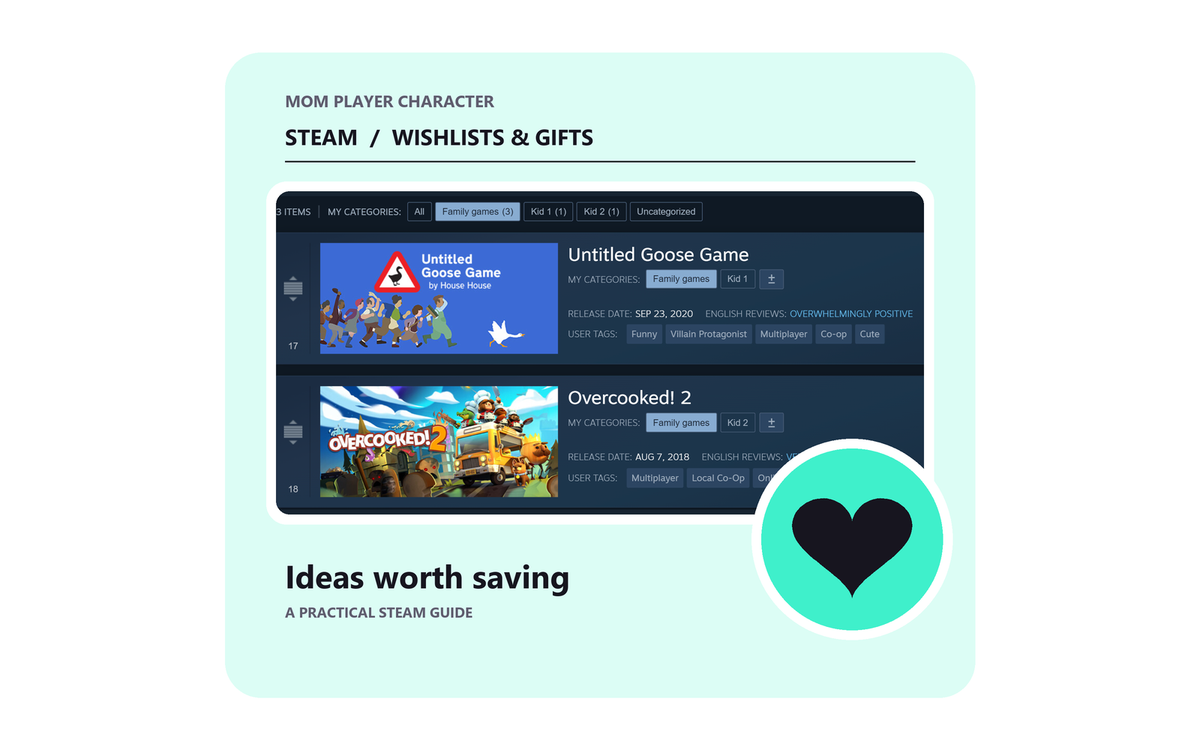
Use a Steam wishlist for your own games or family ideas, share selected categories, and choose the right account when buying a gift.
- Wishlist categories stay on the list owner’s account
- Share a filtered list with family or friends
- Guests can buy gifts; recipients need an eligible Steam account
- Check the game, recipient, country and delivery timing
- Sale alerts are optional and do not cover console prices
On this page
Steam can help you keep track of games for yourself, organize gift ideas for your family, and send a game to someone else's account. In 2026, you can also share a filtered part of your wishlist and buy a gift without having a Steam account yourself. The person receiving a Steam game still needs an eligible account to accept and use it.
The account detail is the one to settle first. A category called “Kid 1” is a way to organize your own wishlist. It is not a separate Steam account, and a gift bought directly from your shared wishlist is intended for the list owner. If the game needs to go to someone else, check the recipient during checkout.
Steam is a digital store for computer games. A Steam game is for a compatible computer or Steam Deck, not automatically for a Nintendo Switch, PlayStation or Xbox. If a child plays on a console, use the Steam listing as a planning note and check the game on their own platform before buying.
Start with whose account the games belong to
Your Steam wishlist is attached to your own account. You can use it to remember games you want, keep an eye on prices, or make a family shortlist without buying anything. Creating a wishlist does not require entering payment details, and you can manage it in a browser without installing the Steam app.
If an eligible teen has their own Steam account, their own wishlist can show the games they want for that account. A parent can still keep a separate planning category on the parent's account. Just tell anyone shopping which list belongs to whom.
For younger children, an adult can keep a list of ideas and talk through the right device and purchasing route with the family. Valve's agreement says Steam is not intended for children under 13, and additional age restrictions may apply by country. An adult's planning list does not create an eligible Steam account for a younger child, and account passwords should stay private.
Find and save the right games
Sign in to Steam and search the store for a game. Look at the title and the product description before saving it. The full game, a demo, an expansion or a soundtrack can each appear as separate results. An expansion can need the original game, while a soundtrack is the music rather than the game itself.
Open the game's store page and select “Add to your wishlist.” The button changes to “On Wishlist,” and you can return to the list from the Wishlist link in the store. You can do this for your own game ideas as well as games the family is considering.
Saving a game is a useful first step, not a compatibility check. Before anyone buys, confirm the exact edition and the device it needs to run on. Steam's store page lists system requirements for the supported operating systems. For a Steam Deck, check the compatibility notes too.
Make space for your own list and family ideas
Steam's wishlist categories let you group games on the same account. You might keep “My games,” “Family games,” “Kid 1” and “Kid 2,” or use birthday and holiday categories instead. A game can be in more than one category.
Open your wishlist and use the category control beside a saved game. Type a name to create a category, or select one you already have. The “On Wishlist” menu on a game's store page also offers category controls. In our example, Untitled Goose Game is in both Family games and Kid 1.
Select a category above the wishlist to see a smaller group. This lets you keep your own ideas alongside family plans without asking everyone to sort through the whole list. The categories are still part of the account owner's single wishlist, even when a category is named for somebody else.
Share a selection with family or friends
Open your wishlist, choose the category you want to share, then use the share button at the top to create a link. Steam's sharing feature can show the filtered selection without making the entire wishlist public. Anyone with the link can see that selection, even if the underlying wishlist is private, so send it directly to the people you intend. You can revoke the link when you are finished.
Try opening the link in a browser window where you are not signed in. You will be able to see what the person shopping can see. Add a note saying whose list it is, which game is the favourite, the device it is for, and whether the shopper should check with you before buying.
This matters when a parent maintains the list. Steam preselects the wishlist owner as the recipient when someone shops from a shared list. If the gift is intended for an eligible child's separate Steam account, select the correct recipient in the gift options and check it before paying. If the right recipient cannot be selected, return to the game's store page and start the gift purchase there. A shared wishlist does not reserve an item for one person, so a quick message can also prevent duplicate gifts.
For a closer look at sending and checking the link, see how to share a Steam wishlist for family gifts.
Choose the alerts you want
Steam can notify you when a wishlisted game has a qualifying discount. In Account Details, open Notification Settings or Manage Email Preferences and look for Wishlist Activity. You can choose your notification channels and which wishlist categories should trigger them. A verified email address is needed for email alerts.
The optional Steam Mobile app offers another way to receive notifications. A sale alert is useful as a reminder, but it does not guarantee the lowest price or an alert for every change. If a birthday is close, check the listing directly as well. Our Steam wishlist sale alerts guide goes into notification rules and what to check when an alert arrives.
Buy a game for yourself
When a game is for your own Steam account, add the exact game or edition to your cart and check that the purchase option says “For my account.” Review the price, compatibility and payment details before completing checkout. Buying a game for your own account is different from sending a gift to somebody else's account.
Buy a Steam game for someone else
If the game is for someone else's eligible Steam account, add it to the cart and change “For my account” to “This is a gift.” Choose “Continue to gift options.” The screenshots below show the store in Canadian dollars, so the price and currency may look different where you live.
If you are signed in, “Select recipient” lets you choose a Steam friend. “Enter email” is another option. Steam also supports guest checkout for gifts, so a relative can buy a gift without making a Steam account. Ask the recipient or the adult coordinating the present for the right account or email address. You can add a gift message before continuing.
The buyer does not need a Steam account for guest checkout, but the recipient needs an eligible Steam account to accept and use the gift. Before completing payment, check the game, recipient, price and any restriction Steam shows. If you began from someone else's shared wishlist, check whose wishlist it was and whom the checkout names as recipient.
For an email gift, Steam says the recipient must be in the same country as the purchaser. Email gifts cannot be scheduled for a later date. If an emailed gift is not added to an account within 30 days, Steam says the purchase is automatically refunded. Those details appear before payment and are also explained in Valve's gifting update.
If a family member lives abroad, look at the options and restrictions shown at checkout rather than assuming an email gift will work. Other gift routes can have different availability and pricing. For a surprise later in the year, check the available delivery options before buying, or wait until closer to the occasion for an email gift.
Our Steam gifting guide has more detail on choosing a version, getting the game onto the right account and preparing it for the occasion.
What about Steam gift cards?
A digital Steam gift card gives the recipient money to spend through Steam instead of choosing a particular game for them. That can be helpful when you know the platform but are not sure which game or edition they want. Check the current delivery and country information on Steam's gift card page before paying, and remember that the recipient needs an eligible Steam account to use Steam credit.
Valve says it is winding down physical Steam gift cards sold in retail shops as existing stock runs out. Previously purchased cards remain redeemable subject to local rules. If you are shopping for a physical card, check availability rather than assuming your local store will have one. Steam Support has the current information.
After the gift is sent
The recipient follows Steam's acceptance instructions while signed in to the account that should keep the game. If they need the Steam app, start with Valve's official download. Once accepted, the game appears in their Library, the place in Steam where their games are listed, ready to install if their device supports it.
Keep the purchase confirmation until the recipient has accepted the gift and found the game in the right library. If anything looks wrong, check the gift status and account before buying a second copy. Steam's usual game refund terms are within 14 days of purchase and under two hours of play, with particular conditions for gifts. A redeemed gift's recipient needs to initiate the request, and an approved refund goes to the purchaser. The refund policy explains the details; Steam says it will also consider requests outside those terms.
Once you have a small list and know which account each game belongs to, you can leave it there until a birthday, a sale, or someone asks for gift ideas. It is just as useful when you decide to wait.
Steam interface screenshots captured for MPC; game artwork belongs to its respective creators.
Questions parents ask
Does the person buying a Steam gift need an account?
No. Steam offers guest checkout for gifts. The recipient needs an eligible Steam account to accept and use a game or Steam credit.
Can I make a separate Steam wishlist for each child?
You can create a category for each child within your own wishlist. Those categories remain part of your account. An eligible child with their own Steam account can maintain their own wishlist.
Can I share only part of my Steam wishlist?
Yes. Filter your wishlist to a category and create a sharing link. Anyone with the link can see the selection even if the full wishlist is private, and you can revoke the link later.
Who receives a gift bought from a shared wishlist?
Steam preselects the wishlist owner as the recipient. If someone else should receive the game, check and select the correct eligible account before paying.
Can I email a Steam gift to someone in another country?
Steam says the recipient of an email gift must live in the purchaser’s country. Other routes have different restrictions; review the available options and price at checkout.
Will Steam notify me about every price drop?
No. Steam sends alerts for qualifying discounts, subject to your notification settings and other limits. Check the listing directly if you are buying by a particular date.