How to set up Steam wishlist sale alerts
Save games to a Steam wishlist, choose email or phone alerts and learn why some discounts may not trigger a notification.
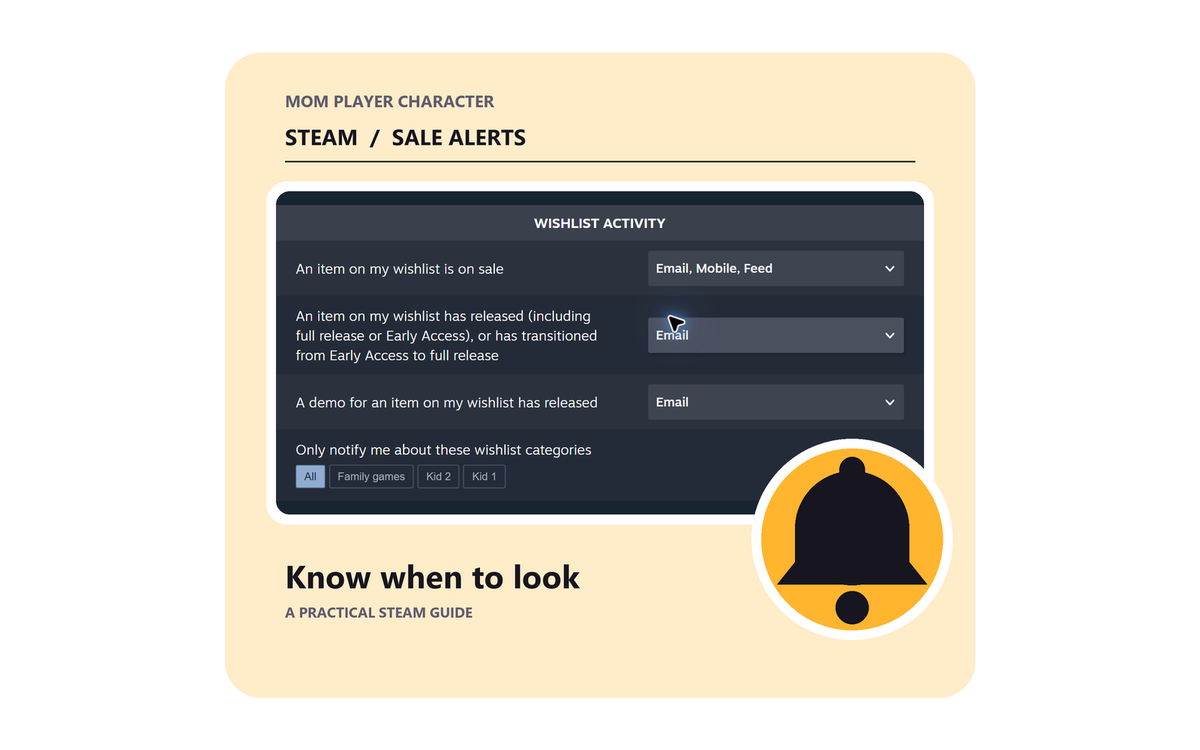
Sign in to Steam, add a game to your wishlist and enable sale alerts under Wishlist Activity. Steam alerts cover Steam offers and may not arrive for every discount.
- A wishlist does not require a purchase
- Choose email or mobile alerts in Wishlist Activity
- Some discounts do not trigger the usual alert
- Check console prices separately
On this page
A Steam wishlist can send you a heads-up when a saved game has a qualifying discount. Add the game while signed in, check your notification settings, and Steam can email you or send a mobile alert. You do not need to buy the game to keep it on the list.
The alert is for the Steam version. If your family plays on Nintendo Switch, PlayStation or Xbox, check that store separately before treating the price as a deal for your child's device.
Set up your wishlist in a browser
1. Sign in and find the game
Open the Steam Store in a browser and sign in to the account that will keep the list. If you are tracking requests for your child, your own account can be a useful planning place. Steam accounts are personal, and Steam's terms say people under 13 cannot become subscribers. Additional age restrictions may apply where you live.
Search for the game by name and check the full title before choosing it. A soundtrack, downloadable extra or demo can have its own page. A downloadable extra adds content to a game and may need the base game to work.
2. Save it to your wishlist
Open the game's store page and select Add to your wishlist. The button changes to On Wishlist. You can return to your wishlist while signed in and add other games the same way.
3. Choose where the alerts go
Open Steam's notification settings and find Wishlist Activity. For “An item on my wishlist is on sale,” choose the channels you want. Check that your Steam email address is verified if you want emails.
If you already use Steam for your own games, you can limit wishlist alerts to chosen categories. A Family games category can keep those notifications manageable without clearing your personal wishlist.
If you would rather receive phone notifications, use the official Steam Mobile app and check both its notification settings and your phone's permissions. Email can be enough if you would rather not add another app.
What Steam will and will not alert you about
A wishlist is helpful, but it is not a promise of a message for every price drop. Valve's notification documentation says a sale normally needs to be at least 20% off, last more than eight hours and include the game's lowest-priced package. If only a more expensive edition is discounted, that may not trigger the usual alert.
Steam also limits repeated email about the same game, generally for about two weeks. Busy sales can delay messages. A verified email address and your notification choices affect what arrives, too. For a birthday or another deadline, it is worth checking the game's page directly.
If an alert does not arrive
First check that the game is on the wishlist for the account you are using. Then open Wishlist Activity in your notification settings, confirm the sale alert channel, and check whether the relevant category is included. For email, verify the address and look in spam or promotions. On a phone, check the Steam app and the phone's notification settings.
The sale may also be too small or too short to trigger the usual notification, or Steam may have recently emailed about that game. You can check the current price on the store page without waiting for a message.
Compare the right version before you buy
A Steam discount is for a Steam purchase. It does not tell you whether the same game is on sale for Switch, PlayStation or Xbox. If a child plays on a console, check the game and edition on that console's store, or compare a physical copy where one is available.
A console price tracker such as Deku Deals can help you check price history and make a wishlist for supported platforms. Choose your country and device first. Before buying, compare the edition, any required subscription, and the final price.
If the game is for a computer, check its system requirements on the store page against the computer it will run on. Windows, Mac and Steam Deck compatibility can differ even when the title looks the same.
For help organising categories, sharing a wishlist with relatives and choosing the right recipient at checkout, see our Steam wishlists and gifts guide.
Steam interface screenshots captured for MPC.
Questions parents ask
Does Steam notify me about every wishlist sale?
No. Steam describes a usual threshold of at least 20% off the lowest-priced package for more than eight hours. Notification settings, email verification, cooldowns and delays can also affect whether an alert arrives.
Do I need to buy anything to make a Steam wishlist?
No. A Steam account can save games to a wishlist without buying them or entering payment information just to keep the list.
Why did I not get an email about a sale?
Check that the game is on the right account's wishlist, your email is verified and wishlist sale emails are enabled. Steam may not send an email for a smaller or shorter discount, and recent emails about the same game can trigger a cooldown.
Can Steam alert me about a Nintendo, PlayStation or Xbox sale?
Steam alerts cover offers on Steam. To track a console version, check the relevant store or a price tracker for that platform and country.
Can I get wishlist alerts on my phone?
Yes. The Steam Mobile app offers wishlist notifications. Check the Wishlist Activity preferences for your account and allow the notifications you want on your phone.