How to buy and gift a Steam game for your family
Giving a Steam game? We’ll walk through accounts, computer requirements, keys and delivery timing so the right game reaches the right person.
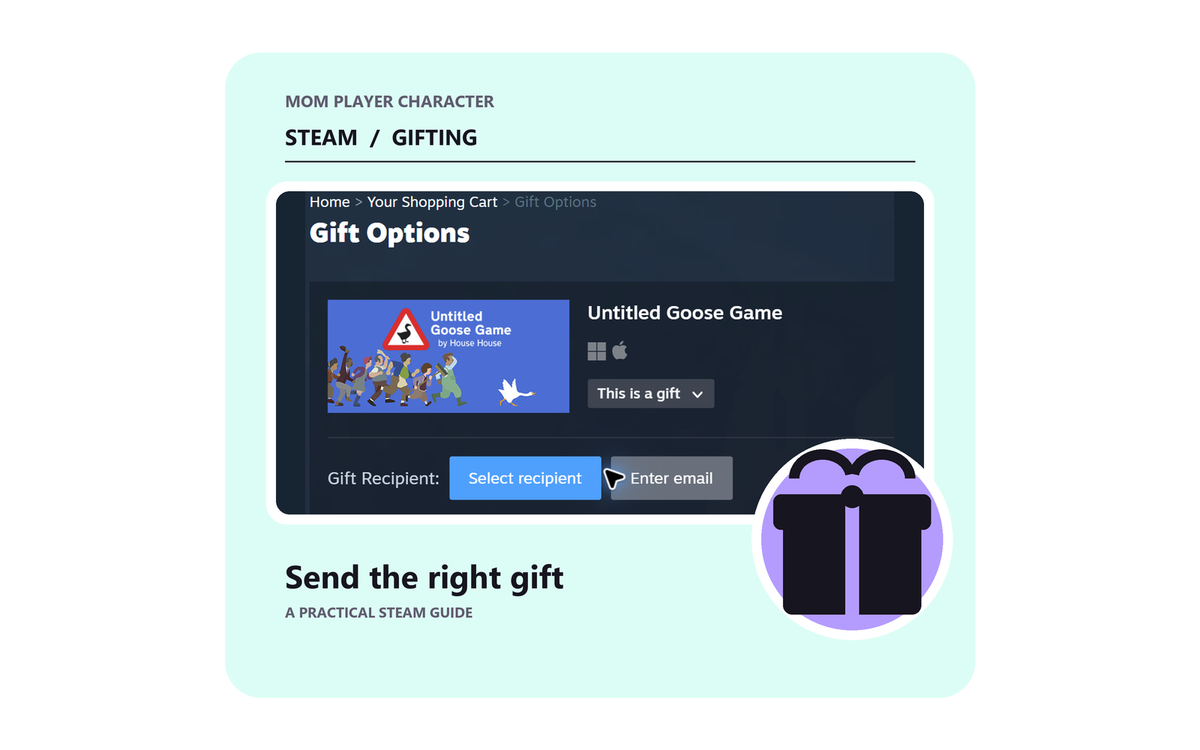
Steam accounts are 13+, so younger children need another supported account or store. For an eligible recipient, choose a game and the gift option. Email gifts can’t be scheduled and must be accepted within 30 days.
On this page
There’s one account detail to sort out before choosing a Steam gift: Steam accounts are 13+, with possible additional local restrictions under its subscriber agreement. For an 8–12-year-old, you’ll need to look at other editions or supported child-account options rather than create their own Steam account.
For someone who meets Steam’s account requirements, you can choose the game, mark it as a gift in the cart, and select who will receive it. Guest checkout and email gifting mean the giver doesn’t need a Steam account. The recipient still needs an eligible account to accept and use the game.
If you’re still gathering ideas, our Steam wishlist and gifting guide shows how to keep track of games and share a selection with family or friends.
If it’s a Christmas present, timing is worth a moment before you pay. Email gifts can’t be scheduled and need to be accepted within 30 days, so an October email won’t wait unopened until Christmas. Valve’s current gifting update explains those rules.
We’re leaving Roblox and Robux out of this buying series because MPC doesn’t recommend Roblox. Our Roblox review explains that decision.
Game, key or credit: what’s the difference?
Steam is a digital game store and a launcher, an app that downloads, installs and starts games on a computer. A purchase gives you a licence to access the game through Steam. There’s no physical disc, and it doesn’t automatically include versions for other devices.
A game gift sends a particular game to someone. A Steam key is a code from a seller or publisher that activates a particular product on Steam, subject to its conditions. Store credit gives the recipient money to spend in that store, leaving the game choice to them.
If these are new words to you, you’re in good company. A parent in a Christmas Steam discussion explained that both they and their child were new to PC games. Working out the basics together is a reasonable place to start.
Will it reach the right person and work on their computer?
Ask for the game’s product link and the Steam account it should go to. A display name alone can be hard to identify. While you’re talking, find out whether they already own it and which edition includes the parts they’re hoping for.
On the game’s page, open System Requirements and select the computer’s operating system, such as Windows or macOS. Compare the processor, memory, graphics and storage listed there with the recipient’s computer. A Windows game may not run on a Mac, and having room for the download is only one part of the check.
On Windows, Settings → System → About shows the processor and installed memory. Microsoft’s device-information guide shows where to look. You can find the graphics model in the computer manufacturer’s specifications.
On a Mac, Apple menu → System Settings → General → About shows the model, chip or processor, and memory; Apple’s About settings guide explains the fields. If the names still don’t mean much to you, send the exact computer model and game requirements to the manufacturer or game publisher’s support. You don’t have to become a hardware expert to ask whether this game will work.
For a Steam Deck, read the game’s Deck compatibility information on the store page, including the notes. That handheld has its own compatibility considerations, so being sold on Steam doesn’t tell you the whole story.
Look for the base game and the edition you want. A soundtrack is the music, and an expansion may need a game the recipient doesn’t own yet. With “Deluxe,” take a look at the extras before deciding whether they’re worth paying for.
Image credit: Valve / Steam; screenshot captured for MPC.
The screenshot shows the base game and soundtrack as separate purchases. Our Stardew Valley review helps with whether that particular game would suit your child; here, the image is showing you what to look for in the store.
Choose the gift option in the cart
Add the game to your cart, open the purchase-type menu and select This is a gift. Give the title and edition one last look, then continue to the recipient options.
You can enter an email recipient or sign in to select a Steam friend. Guest checkout is available if you’re the giver and don’t have a Steam account. If you came from a shared wishlist, take a look at any recipient already filled in, especially when a parent has been keeping the list.
For an email gift, the recipient must be in the same country as the purchaser. If you’re buying for family abroad, look at the current gift options and country restrictions before paying. If gifting isn’t offered or Steam blocks that route, choose another supported option. Buying an extra copy for your own account won’t give you a copy you can simply pass along.
How can you keep it a surprise?
Look at the delivery options before paying. Email gifts go out without future scheduling and leave 30 days to accept. If you’re using another eligible gift route, choose from the scheduling options Steam actually offers and check the date and time shown.
It helps to tell the adult coordinating the present what you’ve arranged. Emails, notifications and game-library activity can reveal a gift even when the box or card is still tucked away.
If the recipient needs to accept now but the celebration is later, you can agree on that together. Otherwise, send the email gift closer to the occasion, or give a card promising the game and arrange delivery together.
Found a cheaper key, or thinking about a gift card?
For a retailer’s Steam key, look for Steam activation, country restrictions, edition and refund terms on the listing. A code for another launcher won’t activate on Steam. When you’re ready, sign in to the account that should keep the game and use Games → Activate a Product on Steam. Valve’s activation instructions also link to browser redemption.
IsThereAnyDeal’s shop information explains how it selects authorized stores, which can help you start comparing offers. Still read the seller’s listing for the exact product and terms. If an offer is for somebody else’s account rather than a game or key, leave that one out of your shopping.
For credit, Steam’s gift-card information explains current delivery and redemption conditions. A short wishlist and an agreed budget can make choosing part of the fun for an eligible recipient. For a younger child, a card promising a family game budget leaves you free to choose an appropriate store together.
Once the gift arrives
The recipient can follow the acceptance instructions while signed in to the account that should keep the game. If Steam isn’t installed yet, start with Valve’s official download. After accepting the gift, find it in the app’s Library and choose Install. Valve’s new-user guide explains how the library works.
There’ll be a download before it’s ready to play, so allow time and enough free storage for that part.
Keep the gift confirmation until the recipient can see the game in the right library. If it seems to be missing, check the account and gift status with the purchaser before buying another copy. Steam Support can help with an unaccepted or missing gift.
Keep the receipt, especially when buying early
Steam’s refund policy generally uses a two-week purchase window and less than two hours of play for games, with specific conditions for gifts and other products. It’s worth reading when you buy early, because that window doesn’t simply wait until Christmas.
Save the confirmation and check the gift status after the intended delivery. If a new device or installation is part of the present, allow time for setup and downloading the game.