How to make and share a Steam wishlist for family gifts
Keep the games they want in one place, share gift ideas with relatives and choose useful Steam sale alerts, with the account-age limits explained.
For an 8–12-year-old, keep the list with an adult: Steam accounts are 13+. On an eligible account, save and group gift ideas, then share the selection. Check who should receive the game before anyone buys.
On this page
You can share a selection from a Steam wishlist with family and friends, even if the wishlist is private. Here’s how to choose the games, create a link and check what other people will see.
If you’re buying for an 8–12-year-old, keep this as an adult’s planning tool. Steam’s minimum account age is 13, with possible additional local restrictions, so a wishlist isn’t a route to creating a younger child’s account.
Anyone with the link can see the selection. Send it to people you trust, and let them know whose wishlist it is before they buy.
We’re leaving Roblox and Robux out of this series because MPC doesn’t recommend Roblox. Our review explains why.
Start with whose list it is
For a younger child, a simple note with product links works well. Add the title, device, preferred edition and a price you’d be happy to pay. Before buying, choose a platform and account route that suits their age.
If you use your own Steam wishlist for research, let relatives know it’s your planning list. The gift button on a shared wishlist can send the game to the list’s owner, so this small detail can save some confusion at checkout.
For an eligible teenager who already uses Steam, you can make the shortlist together on their own account. Just check that it’s the account they actually use before passing the link along.
Add the games they’re hoping for
While signed in, open the game’s Steam store page and choose Add to your wishlist. Do the same for the other games you’re considering. This saves the idea without buying anything.
Take a moment with the title: the base game, its soundtrack and an expansion can have separate pages. The product’s System Requirements also matter, because saving a game doesn’t tell you whether your computer can run it. The Steam buying guide walks through those checks.
Ask your child which one they’d choose first. A category keeps the list tidy, but relatives will still appreciate a note saying, “This is the favourite; these two are alternatives.”
Give the gift ideas their own category
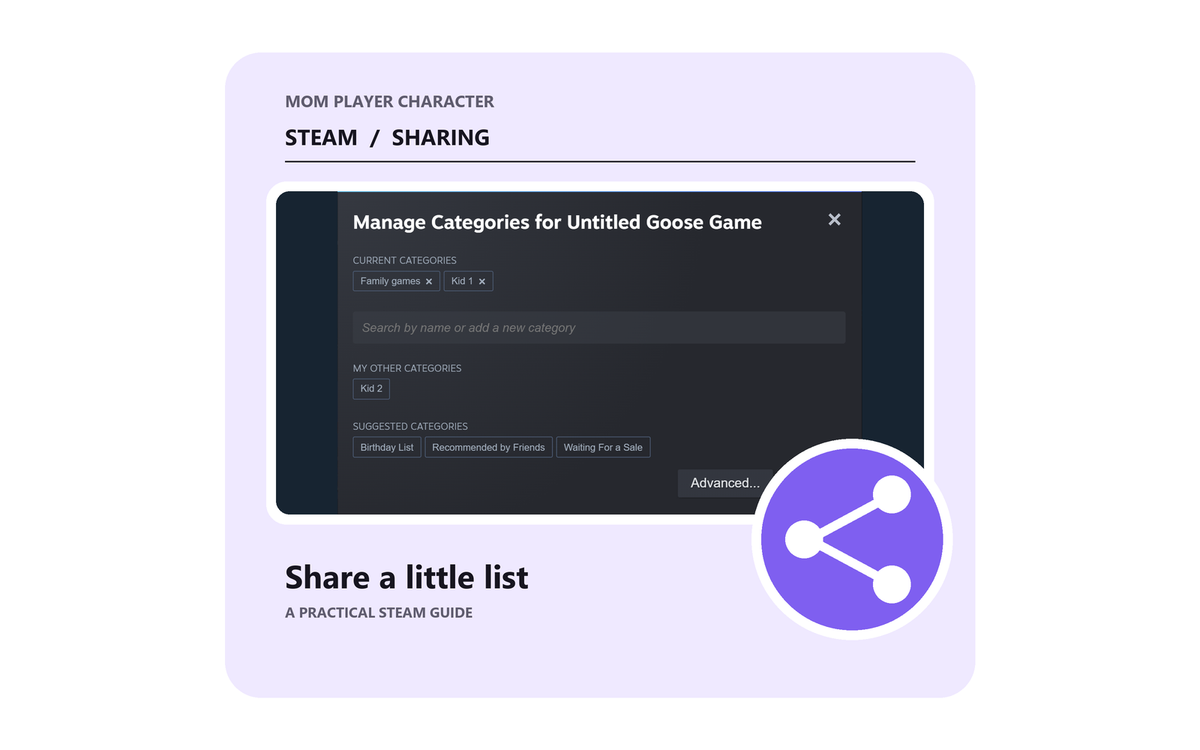
Steam’s custom categories let you gather those ideas in one place. On a game you’ve already saved, use the On your wishlist menu to assign a category. “Gift ideas” is a perfectly useful name.
Image credit: Valve / Steam.
Open the store’s Wishlist link and filter by that category. Give the selection a quick look together: are they still interested in these games, does the household already own any, and do the choices fit the budget?
The steps follow Valve’s July 2026 wishlist update. The screenshots use Valve’s demonstration games and category names to show the controls; they aren’t MPC game recommendations.
Share just that selection
With your chosen filter active, select Share at the top of the wishlist and create a sharing link. The link reflects the filtered selection you’re looking at.
Image credit: Valve / Steam.
Anyone with the link can view the selection, even if the underlying wishlist is private. Send it directly to the relatives you want to share with, rather than posting a child’s gift list publicly. Steam’s revoke option lets you turn the link off when you’re finished with it.
Before sending it, try opening the link in a browser window where you aren’t signed in. That lets you see what your relative will see without changing the profile’s general privacy settings.
You could send it with: “These are our gift ideas, in order of preference. Please check with me before buying so I can confirm the version, account and delivery date. This is my list, which I’m using to plan.” If it’s an eligible recipient’s own list, say whose it is instead. Keep passwords private; relatives don’t need them to look at the ideas.
A separate private note of who’s buying what will help everyone coordinate. A wishlist doesn’t reserve a game for one relative or stop another from choosing the same thing.
Choose the alerts you actually want
The notification preferences in Valve’s wishlist update let you choose which categories trigger alerts. Steam’s notification page explains email and mobile alerts and links to the account preferences. Sign in to the account that owns the list to adjust them.
Image credit: Valve / Steam.
When an alert arrives, you can compare the price with the budget you already chose. It doesn’t mean this is the lowest price the game will ever reach. If the notifications are turning a small shortlist into a much bigger shopping trip, keep alerts just for the gift category.
If an email doesn’t arrive, open the saved product to check the price, then look at the email and mobile notification settings and your spam folder. For a gift with a deadline, check the listing directly as well.
For the broader picture, our Steam wishlist and gifting guide covers setting up a wishlist, choosing alerts and buying for yourself or someone else.
One last check before someone buys
Confirm the recipient, country and exact game with the person buying it. If the list belongs to you, make sure the gift button hasn’t selected you as the recipient when you intended someone else.
Our Steam gifting guide explains the checkout and email-delivery options.
If you’re still choosing games, talk through the options together and check each game’s age rating, content and device requirements. Once you have a list you’re happy with, you can let it sit until there’s an offer worth a look.
What this guide is built on
- websiteValve / Steam